Quick Lists
Purpose
Account Executives (or Sales Representatives) creating quotes/orders with similar lists of items, or sets of groupings, may find it useful to have the ability to save that collection of inventory master parts and/or vendor products. The list of items may subsequently be used to quickly populate other quotes/orders. The purpose of such a list is to streamline the creation of a Q360 quote and/or sales order. Such a list may be defined to be used for a given prospect/customer only, or for ANY prospect/customer’s quote/ order.
Business Use Case
When users create a quote, they may find that they wish to ‘save’ that item layout (e.g. sequence, with heading, blank line, comment line, discount applied, etc.) for re-use at a later time on different quotes or orders. Q360’s “Quick List” tool allows the user to define such a list (similar to adding items on a quote), and confirm the status of the list. Once a list is confirmed, it is available to be selected and added on any quote/order.
Instances where you may want to define a “Quick List” include:
- Increasing Efficiency
-
- Results in significant reduction in ‘user-clicks’ to add items to quote/order; user may re-focus their time and attention to other aspects of the sale process
- Labor Quick Lists can be created with saved WBS codes on the Quote level, which will carry over to the project resulting in automatically assigned labor hours to tasks. For details on Work Breakdown Structure, see WBS Webinar 1, WBS Webinar 2, WBS Webinar 3 and Work Breakdown Structure – Order to Project
-
- Facilitating Training
-
- List is accessible to new Q360 users and/or new employees who may not be familiar to the role of creating quotes/orders
- Assists in the roll-out plan for new or complex products available for sale to customers
- Ensures items are not ‘forgotten’ to be added on a quote/order:
-
- User still has option to remove items once added on a specific quote/order, but would have to do so on purpose
- List of items may simply be used as a placeholder for other similar items
-
- Assists in establishing a ‘standard’ for quote/orders across the organization
-
- Rolling out Promotions
-
-
- Enables the launching of promotions or testing of products and services for sale
- Provides alternative to highlight a collection of products and services
-
-
- Enabling Customer-Centric Care
- A defined list targeted especially for a given customer may be used to:
- Reflect negotiated contract agreements
- Take advantage of lessons learned in previous dealings so future quotes/orders are designed to be better catered for given customers
- A defined list targeted especially for a given customer may be used to:
Create a Quick List
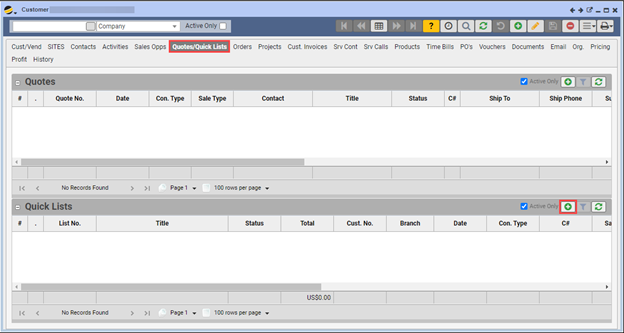
- Go to Customer Form > Quotes/Quick Lists tab
- Click on the green ADD (+) button in the Quick Lists grid
- Define for the Quick List: a title, effective/termination dates, and items which you may edit
- Refer to the Customer Specific Vs. Non-Customer Specific Quick Lists section below to define whether this is to be used for this customer only, or available to be used for all customers
- If further edits are expected, or approval is required, save the List in DATAENTRY status
- To make this Quick List visible and available for use, process the Quick List to a CONFIRMED status using the Process button
Utilizing Effective and Termination Dates
- Effective Date determines when the Quick List will be available for use
- Termination Date determines when the Quick List will expire and cannot be used
Add a Quick List to a Quote
- In Edit mode, click the Quick Lists sub tab
- All available Quick Lists are displayed in the grid. The title description is listed along with the total price
- Highlight a Quick List, and specify the quantity that you wish to ‘factor’ (or multiply) all the items in the list by (top field above grid)
- Click the black ADD button. A pop-up window will appear:
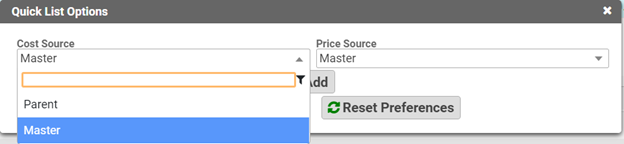 Cost Source: Determine how the Cost will be calculated. Price Source: Determine how the Price will be calculated. Note: Parent: Use values present on the original Quick List and, Master: Use values based on value determination factors.
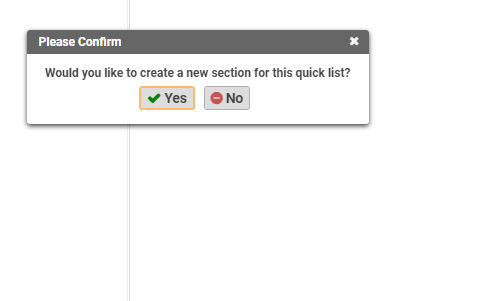
 - A second pop-up window will appear:
- Clicking yes will insert the list as a new section
- View the quote’s Line Items tab where Q360 has added all the Quick List items
- Continue to edit and/or process the quote
Customer Specific Vs. Non-Customer Specific Quick Lists
An important consideration when creating Quick Lists is defining whether it will be customer specific, or available for use across all customers
For non-customer specific Quick Lists, it is recommended that you create them on your own Company’s customer record
- On your Company’s customer form, Navigate to the Quotes/Quick Lists tab.
- Click the Green Add (+) button on the Quick Lists grid.
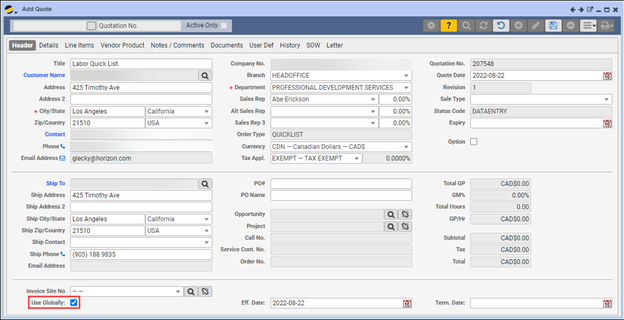
- On the New Quote/Quick List form, check the Use Globally option (this will allow Q360 users to add this Quick List to Quotes for all companies).
- Save the Quick List.
- To make this Quick List visible for use:
- Click the Process icon, then click the Confirm Quick List button.
- This changes the status of the quote from DATAENTRY to CONFIRMED.
Prefer to view this information as a video?