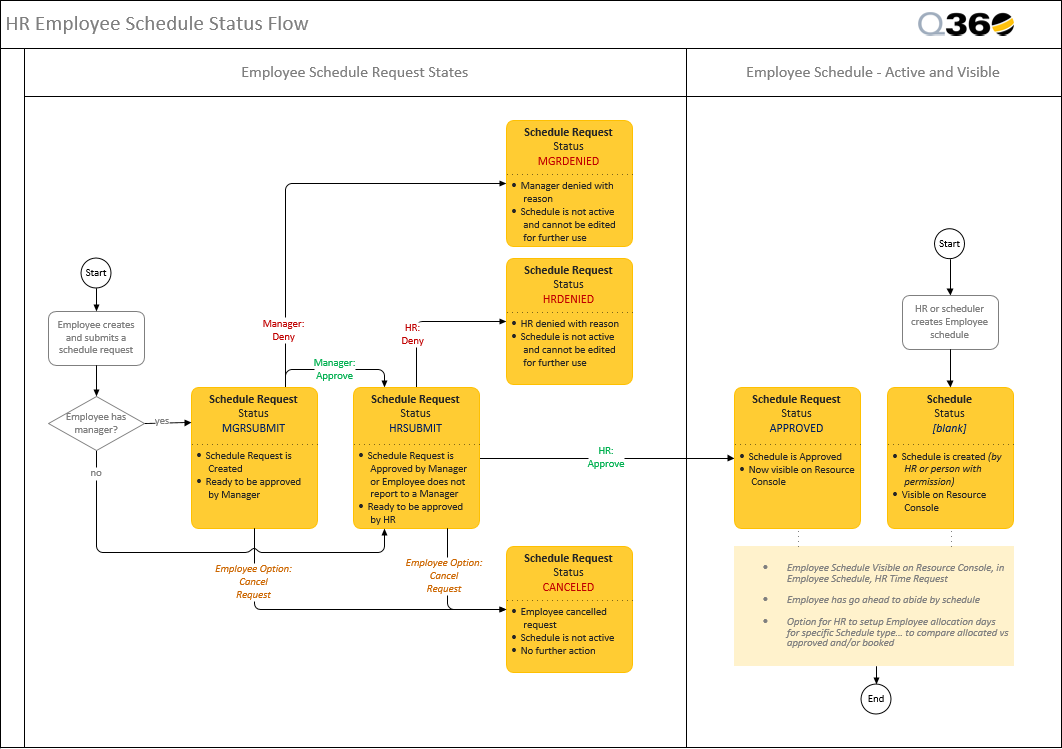
There are 2 options to create Employee Schedule: via Create Company Employee Schedule or via the Employee record. Create Company Employee Schedule allows selection of multiple Employees, while from the Employee record, it is intended for a specific Employee
From Global Schedule
- Go to HR > Create Company Employee Schedule
- Select the filter details for the Employee list based on Company, Branch, and / or Department
- Notice the Available Employees grid displays a list of Employees from which we can choose to create a schedule for
- Define the schedule attributes:
- Date, Time Range, and Type
- Optionally, add Comment text
- Select the row(s) of Available Employees and click the ADD button
- Notice the schedule is created for the Employee names listed on the Current Schedule grid
From Employee record
- Go to HR > Employee, and open the Employee record
- Click the Employee > Schedule tab
- Click Schedule grid ADD button
- When prompted, enter the Schedule details, including Type, Start Date, End Date
- Some fields have defaults Start Time and End Time default to the employee’s typical work day hours and Allocation per Day defaults to 1
- Comments (optional)
- Click Submit button
Regardless of how the Employee schedule is created by HR, its status is [blank] since no approval is required. Once created, it is visible in a few places for visibility: HR > Schedule, the Resource Console, and the Employee record