This section describes the general Sales procedures in Q360. The diagram below provides a visual outline of these procedures. Click on the boxes to learn more information about a specific process.
Sales#
Create a Prospect#

A Prospect is a Customer record with the Type field set to PROSPECT. Once the record is changed to CUSTOMER, it will be used for displaying general details such as Sales, Service, Project, and Accounting information.
- Go to Sales > Customers, then click the Add icon
- In the new record, enter the Customer details
- Click the Save icon
Create a Site#
Site records track Company Site specific details such as Contacts, Sales, Service, Projects, and Accounting
- Go to Sales > Customer and search for selected record
- Click the Sites tab, then click the Add icon located in the Sites grid
- In the new record, enter the Site details
- Click the Save icon
Create a Contact#

Contact records contain the general information for the Contact and their relationship to the linked Company. You may link related Contacts, track Contact Activities, and view Sales Opportunities related to a Contact
- Go to Sales > Customer and search for selected record
- Click the Contacts tab, then click the Add icon located in the Contacts grid
- In the new record, enter the Contact details
- Click the Save icon
Create a Sales Opportunity#

Sales opportunities allows sales personnel to better manage their prospects, provides management the ability to track activity within the sales department.
To create a sales opportunity, complete the following steps:
- Go to Sales > Customer, and open a Customer record. Click the Opportunities tab, then click the Add icon
- In the new record, fill in these recommended fields for Sales and Labor (labour) forecasting:
- Interest | business Opportunity Prospect is interested in; determines default Sales Funnel Template, if configured
- Value | amount of the Sales Opportunity
- RMR | amount of Monthly Recurring Revenue, if applicable
- Close Date | date you expect a decision to be made and close out the opportunity
- Install Date | date you expect the Project to be “substantially completed,” if applicable
- Sale Type* | specified line of business of this Sale to be reflected on the linked Quote / Order
- Fill in Scope of Work details in the SOW tab
- Click the Save icon
- Once saved, verify the following:
- Opportunity tab > Funnel subtab
-
- The grid will pre-populate with the default Sales Funnel template steps – if configured for the “Interest” value of this Sales Opportunity
- If the “Interest” was not configured – or you wish to select a different Sales Funnel template – you still have the option to do so by clicking the Funnel grid “Link…” icon
-
- Team tab
-
- Optionally, you may include the names of key stakeholders related to this Opportunity as they become known, e.g. Employees (e.g. Sales Engineer) and / or Contacts (e.g. Prospect decision maker)
-
- Opportunity tab > Funnel subtab
Note: Selection of the Sales Opportunity Sale Type value impacts whether a Call / Project / Service Contract is created on approving the corresponding Sales Order, with values dependent on your system configuration (General Code Unified Type “UNIFIEDTYP”). For instruction on creating Sale Types, check out Opportunity Sale Types (Unified Types)
See additional key fields, definitions, and video in article Sales Opportunity Form Key Fields
Update Opportunity Reminders#
Opportunity reminders are used to inform Sales personnel to perform actions. When Opportunities are assigned to a User, related Reminders will display in View > My Tasks for that User.
Adding Reminders can be done from the Sales Opportunity or from an Activity linked to the Sales Opportunity, in the scenario where more details are required to track the Sales Activity.

From the Sales Opportunity, add or update the Reminder details:
- Go to Sales > Opportunities and open the Opportunity record you want to view
- Click the Update Rem. hyperlink. The Reminder modal displays with details
- Specify the Date and the Reason for the reminder
- Click the Save icon
The Reminder will appear on View > My Tasks for the Sales Rep identified on this Opportunity record

From the Sales Opportunity, create an Activity and set its Reminder details:
- Go to Sales > Opportunity and open the Opportunity record you want to view
- Click the Activities subtab, then click the Add icon. A new Activity record displays
- Fill in the appropriate Activity details, including the Sales Rep
- Click on the Follow Up Date field and specify the Date and Reason for the Reminder
- Click the Save icon
Mark Funnel Steps Complete#

After each Funnel item is completed, it must be marked as such within the Opportunity
- Open an Opportunity record and click the Funnel subtab
- Highlight the rows you want to mark “complete”
- Click the Extended Menu on the Funnel subtab, select “Mark as Complete” option
Assign Funnel Steps to a Resource#

You can assign a resource such as another user to a funnel item.
- Open an Opportunity record you want to view.
- Click the Funnel sub-tab and open the funnel item you want to assign.
- Click the Edit icon and edit the necessary fields, including:
- Scheduled
- Start Date
- Scheduled End Date
- Assignee
- Estimated Effort (hours)
- Click the Save icon.
Update a Funnel Step#

To update a funnel item that is assigned to you, complete the following steps:
- Go to View > My Tasks, open a funnel item you want to update.
- Click the Edit icon.
- Make the required changes to the funnel item.
- Click the Save icon.
Time bill Against an Opportunity#

Time billing against an Opportunity allows you to track the amount of time spent working on that Opportunity
- Go to View > My Tasks and open an Opportunity
- Click the Edit icon
- Select an option in the Category field, then click the Save icon. If you do not select a Category at this time, you will be required to do so when stopping the Time Bill
- Click the Time Bill (clock) icon. The following occurs:
- A Time Bill form opens indicating that it is currently running
- In the Tasks form, the open Time Bill is listed at the top of the grid
- To stop the Time Bill, click the Time Bill (clock) icon again
You may also bill time against an Opportunity by clicking the Time Bill (clock) icon in the Opportunity record, using the same instructions as above
Create and Process Quotes#

This section describes how to create a Quote from an Opportunity and how to process the Quote
Create a Quote for an Opportunity
- Go to Sales > Customers, and open a Customer record
- Click the Sales Oppors tab, and open an Opportunity from the grid
- Click the Quotes tab, then click the Add icon. The new Quote contains details carried over from the Opportunity. From here you can add other necessary information.
- Note: Quote Header tab contains the field GP/Hr – this field displays Gross Profit per hour and is calculated as [Total GP (Gross Profit) divided by Total Hours]
- Click the Save icon
For more information on building Quote Line Items, see Build Quote Sections and Build Quote Line Items
Process a quote
- Open a quote you want to send for approval
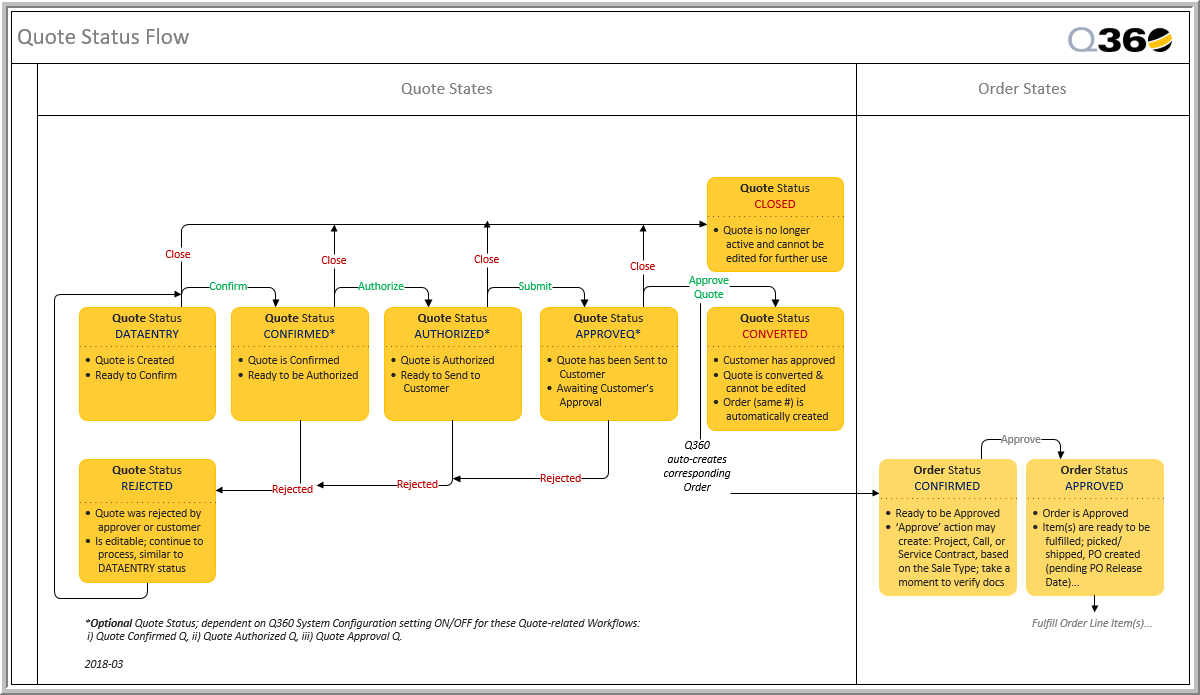
- Click the Process icon, then click the Confirm Quote button. This changes the Status of the Quote from DATAENTRY to CONFIRMED
- The Quote will be sent through the AUTHORIZED, SUBMITTED, and APPROVED process, as illustrated on this Q360 Quote Status Flow
Print a Quote#

To print a Quote Proposal:
- Go to Sales > Quotes and open the Quote you want to print
- Click the Print icon
- In the Print Form, select the type of Quote you want to print
- Select your desired print destination
- In the Print Format section, select the file type to output the Quote
- Click the Add PDF to Quote check box if you want to attach the printed file to the Docs tab in the open Quote record
- Click the Print button, select your options, then click the Run button
Convert a Prospect to a Customer#

While Quotes can be generated for Prospects, those Quotes cannot be converted to Orders until the Prospect is converted to a Customer
- Go to Sales > Customers and open a Customer record of TYPE Prospect
- Click the Edit icon
- Change the Type field to one of the following options:
- CUSTOMER for Customers
- CUSTVEND for Customers / Vendors and Vendors
- Click the Save icon
Permissions required to convert a PROSPECT to a CUSTOMER are CUSTTYPE_CREATE and ACCOUNT_VIEW
Approve Customer Authorized Quotes#

After the Customer or Prospect agrees to proceed with the Quote, you must convert the Quote to an Order
- Open a Quote and click the Process icon
- In the Process window, click Approve Quote. A new Order, with same (Quote) number, will open in CONFIRMED status
- Make any additional changes to the Order as needed
- Click the Save icon on the Order record
Note: Depending on the Sale Type field in the Quote record, approving a Quote may automatically generate a Project, Service Contract, or Service Call
Approve Customer Orders#
After the Customer has approved a Quote and the Order is generated, the Order must be approved internally
- Open an Order record
- Click the Process icon
- In the Process window, click the Approve button. The Status field in the Order will change to APPROVED
Note the following:
- Prior to changing the Order from CONFIRMED to APPROVED, the Order displays in the Orders Pick Q, but not in the Shipping Q
- When an Order is in APPROVED status, it displays in both the Orders Pick Q and the Shipping Q
- When an Order is in APPROVED status, changes such as adding and removing items can no longer be made
Advanced Sales Procedures#
This section contains advanced and administrative Sales procedures in Q360
Build Quote Sections and Subsections#
Q360 versions 22.02 + offer new enhancements to the quote process.
Quote Sections – End-to-end Flow
To begin using Sections and Subsections within a Quote, click on the Line Items tab of a Quote. A new “Sections” area will appear
Add Section using Add button:
- Click EDIT button
- Click Add icon in Sections area
- A pop-up window will open where you will name your new Section. Enter a name and click Ok
- Click the Add icon again to create a Subsection. Repeat step 3 to name your Subsection
- To link this second Section as a Subsection of a Section, locate the second Section in the left Section area, click on it and drag it to the Section to which it should be attached
- Repeat Subsection process as many times as needed. Sections and Subsections may be nested within one another to whatever level is required
Note: Q360 will respect Sectioning, Grouping and Sequencing of Sections and Subsections when printing a Quote
Add items to a Section or Subsection:
- Highlight Section or Subsection to which you wish to add items
- Click on the Find Product tab within the Sections area
- Use the Search box or Advanced Search options to find Products. Add Product by clicking the Add button next to the Item in the Parts grid
- Click SAVE button when you have finished adding Items to your Sections and Subsections
Note: Kits (K type items) behave differently when added to a Quote. They will appear as a separate Section containing all Items kitted together. If this Kit belongs within another Section, simply drag and drop the Items into that Section and delete the Kitted Section (now empty)
Add Section using Quick List:
- Click the EDIT button
- Within the Sections area, click on the Quick List subtab. A list of previously created Quick Lists will appear in the Sections area
- Add a Quick List to the Quote by clicking the Add button next to the chosen Quick List. Quick Lists may also be added to existing Sections or Subsections by highlighting the Section or Subsection to which the Quick List should be attached
- A pop-up window will appear asking you to choose the Cost Source and Price Source. Make your selections and then click Add icon
- A pop-up window will appear asking “Would you like to create a new Section for this Quick List?” Click Yes. The Quick List you selected will appear in the Line Items grid as its own Section which may be renamed, moved, or nested within the grid using the Sections area as described above
- Save
Quantity Function (Section Multiplier):
It is not necessary to add numerous identical Sections Item by Item to a Quote. The Qty column of the Line Items grid is editable when the grid is in Edit mode. Double click in the Qty column next to the Section you would like to multiply and enter the number of identical Sections you would like the Quote to contain. The Ext Qty column will then display the total number of each Item included in the Quote. Save the form
Note: Both Sections and Subsections may be multiplied using this option
Grouping Items (using Group columns) – Update Group Fields by Section:

- Click the Edit button
- Click the Expand icon on the Line Items grid to expand all Sections and Subsections
- From the Extended Menu of the Line Items grid, select Update Group Fields by Section
- A pop-up window will open asking “Which group field do you want to update?” Select “Dynamically by section depth” from the drop-down menu and click Confirm. This option recognizes that the overarching Section is the ‘main’ Section for the Quote and assigns this Section to the Group 1 column. Subsequent level 2 Subsections are grouped within the Group 2 column, level 3 Subsections are grouped within the Group 3 column and so forth
- Save
Note: Grouping on the Quote level will be maintained through to the Material tab of a Project created from this Quote
Quotes will process forward to Projects as they always have, using the Process button
Once your Quote has been converted to an Order, you will notice that Sections that were multiplied on the Quote have been split into separate Line Items. These may be renamed at this point if needed. Subsections under each Section have carried over to the Order and may be viewed by expanding the Sections. Subsections may be renamed at this point if needed
Quote Duplicate vs Copy Functions

Quote Sections: Duplicate
- Quote > Line Items tab with sections already added. Put form in EDIT mode
- Locate a Section on the Sections subtab. Right click on the Section you want to duplicate and select “Duplicate This Section.” The new duplicate Section will be added to the Sections subtab and to the Line Items grid. This option is used when you want the duplicate Section to appear on the same Quote
- Description, quantity, pricing and other changes may be made directly in the Line Items grid by double clicking in a cell
- Save Quote
Quote Sections: Copy
- Quote > Line Items tab with Sections already added. Put form in EDIT mode
- Locate a Section on the Sections subtab. Right click on the section you want to duplicate and select “Copy This Section.” This option is used when you want to add the copied Section to a different Quote
- Open the Quote to which you want to add the copied Section. Highlight a Line Item on the Line Items grid to which you would like to add the Section copied above
- From the Line Item grid Extended Menu, select either “Paste Selected Item(s) Before” or “Paste Selected Item(s) After.” Copied selection from previous Quote will appear in the new Quote
- Description, quantity, pricing and other changes may be made directly in the Line Items grid by double clicking in a cell
- Save Quote
Quote Sections – Split Line Items

Build Quote Line Items#

Add Line Items
- Open a Quote record and click the Edit icon
- Click the Line Items tab, then click the Find Products subtab
- Use the search fields and drop-down boxes to refine the search, then click Find Product. The Parts grid displays the results based on filtering
- Highlight the row you want to add, then click Add to Quote
- Optional: select the “Special Order” flag checkbox to indicate that this Quote Item should later appear in the Purchasing Queue for Purchaser to explicitly purchase the Item (regardless of Master Item type or whether there is sufficient quantity available on hand in Inventory)
- Click the Save icon
Copy Line Items
Copying Line Items from an another Quote can be useful if there are a lot of Items to add to your Quote
- Open the Quote you are building and click the Edit icon
- Click the Line Items tab and highlight the rows you want to copy
- In the Line Items grid Extended Menu, select Copy Selected Item(s)
- In the Quote you are building, select Paste Selected Items(s) After. The copied Items will display in your Quote
Group Line Items
Grouping arranges Quote Line Items within five possible Groups with default captions Group 1 to Group 5. When a Quote is printed, only Group 1 and Group 2 are referenced, and dependent on your configuration.
To set the Group 1 and Group 2 values for Quote Line Items complete the following steps:
- With the Quote in Edit mode, do the following:
- Find the Group 1 column and highlight the Line Item rows you wish to group
- In the Line Items grid Extended Menu, select Update Group Fields, and enter the text description
- In the grid, verify the selected row’s Group 1 value is updated with the text
- To further categorize a subset of Group 1 line items, do the following:
- Find the Group 2 column and highlight the line item rows you wish to group
- In the Line Items grid Extended Menu, select Update Group Fields, and enter the text description
- In the grid, verify the selected row’s Group 2 value is updated with the text
- Repeat this process as required
Add Statement of Work (SOW) content
- In the Quote, click the Edit icon, then click the SOW tab
- Enter text and format accordingly. Optionally, you can insert a pre-defined selection of formatted text from a template. To do this, click the Insert drop-down for available HTML Templates, and select one
- Click the Save icon
Split Quote Line Items#
Line Items containing multiple quantities of the same Item can be split into multiple lines within a Quote. For example, if there are different purchasing needs for the same part, or you need to group specific quantities for different rooms on a Project
To split Line Items in a Quote, complete the following steps:
- From the Quote form, click the Line Items tab
- Highlight the Line Item you want to split. Note that the Quote does not have to be in Edit mode to split Items
- From the Line Items grid Extended Menu, select one of the following options:
- Split This Line Item – Specify the quantity that you want the new line to be split into. The remaining quantity remains in the original row
- Split This Line Item Into Singles – The Item is split into individual lines based on the quantity of the original Line Item
Also note the following information when splitting Quote Line Items:
- Only one Line Item can be split at a time
- Canceled Line Items cannot be split
- Only Line Items that are type L or M can have decimals
- If a Line Item has negative quantity, the split quantity must be negative. A split quantity cannot be less than the Item quantity
- If an Item has positive quantity, the split quantity must be positive. The split quantity cannot be more than Item quantity
- A split quantity cannot be the same as a Item quantity
- A split quantity cannot be zero
Manage Optional Flags on Quote Line Items#
The Optional Flag capability on Quotes and Proposals now allows users to quote optional items to customers without the need to send out multiple versions of a Quote.
- Open a Quote > Line Items tab
- Click the EDIT button
- In the Optional column, check the boxes on the line items you wish your customer to see as “Optional”
- Click the SAVE button
- Click the Printer icon and select “Print Quote”
- From the Print Report window, select desired Template, Parameters, Destination, Options and Format and click Print button
When the Print Preview opens, you will see the Optional items selected in step 3 above listed in a different color and font, and an Optional Total calculated amount will be displayed in the related quote section. All optional equipment will also be totaled and displayed at the bottom of the quote.
If the customer accepts and approves the optional items, you will need to return to the Line Items grid on the Quote, highlight the optional items, click on the Extended Menu and select the option to “Approve Optional Item(s).”
If the customer rejects the optional items, you will need to return to the Quote, click the Process button and click the Reject Quote button in the window that appears. You may then edit the Quote to remove the unwanted optional items.
Note: a Quote cannot be processed into an order until all checked Optional items have been approved or removed.
Create a New Sale Type (Unified Type)#
Add a new Sale Type:
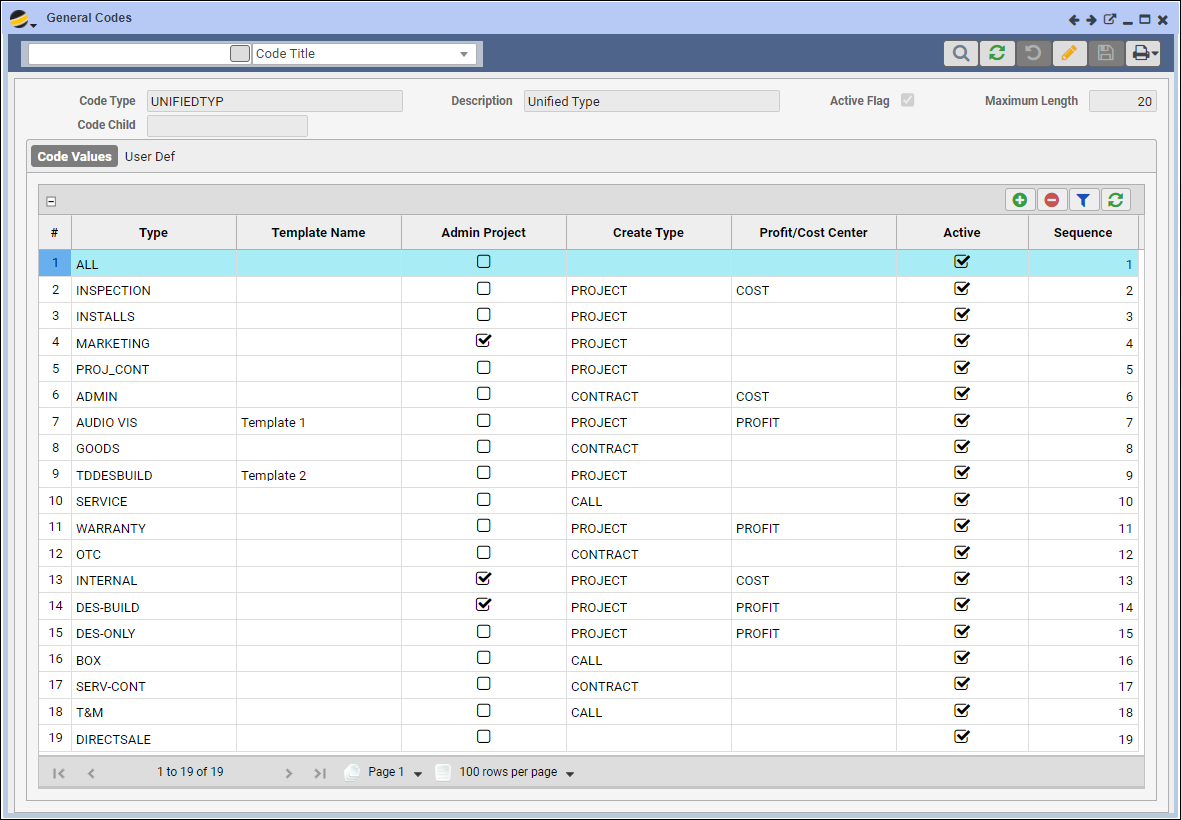
- Go to Maintenance Menu > General Codes
- Search for UNIFIEDTYP in the General Codes form. A list of existing Unified Type Code Values will display in the grid
- Put the grid in EDIT mode and click the ADD button
- Enter information on the new row:
- Type Name: Determines the values that may be selected from the Sale Type drop down menu on a Opportunity, Quote, or Order
- Optional – Project Template Title: If the new Unified Type is intended to create a Project from a template, specify a Project Template Title that will be used when approving the Order. Note: Q360 will NOT prompt you to select a template upon approving the Order
- If the new Unified Type is intended to create an Admin Project, select Y in the Admin Project column to indicate that the resulting Project should be Internal
- Create Type column: indicate what should be created when an Order is approved. Options include Project, Call, Contract (Service Contract), or Blank (will remain as an Order only)
- Profit / Cost Center column: Set this to Profit if the Unified Type is a type of sale to customers, or Cost if this is an internal sale type
- Active column: Check the box if the selected type should be displayed in the Sale Type drop down menu of the Opportunity, Quote, and Order forms
- Sequence field: determines the order in which Type options appear in the Opportunity, Quote and Order Sale Type drop down menus. This option is purely aesthetic
- Click SAVE button
Part 2: Add Default Extended Accounts in Accounting Menu
Configuring Default Extended Accounts involves setting up specific accounts for the new Sale Type:
- Go to Accounting Menu > Admin > GL Admin > Default Extended Accounts
- Place the form in EDIT mode
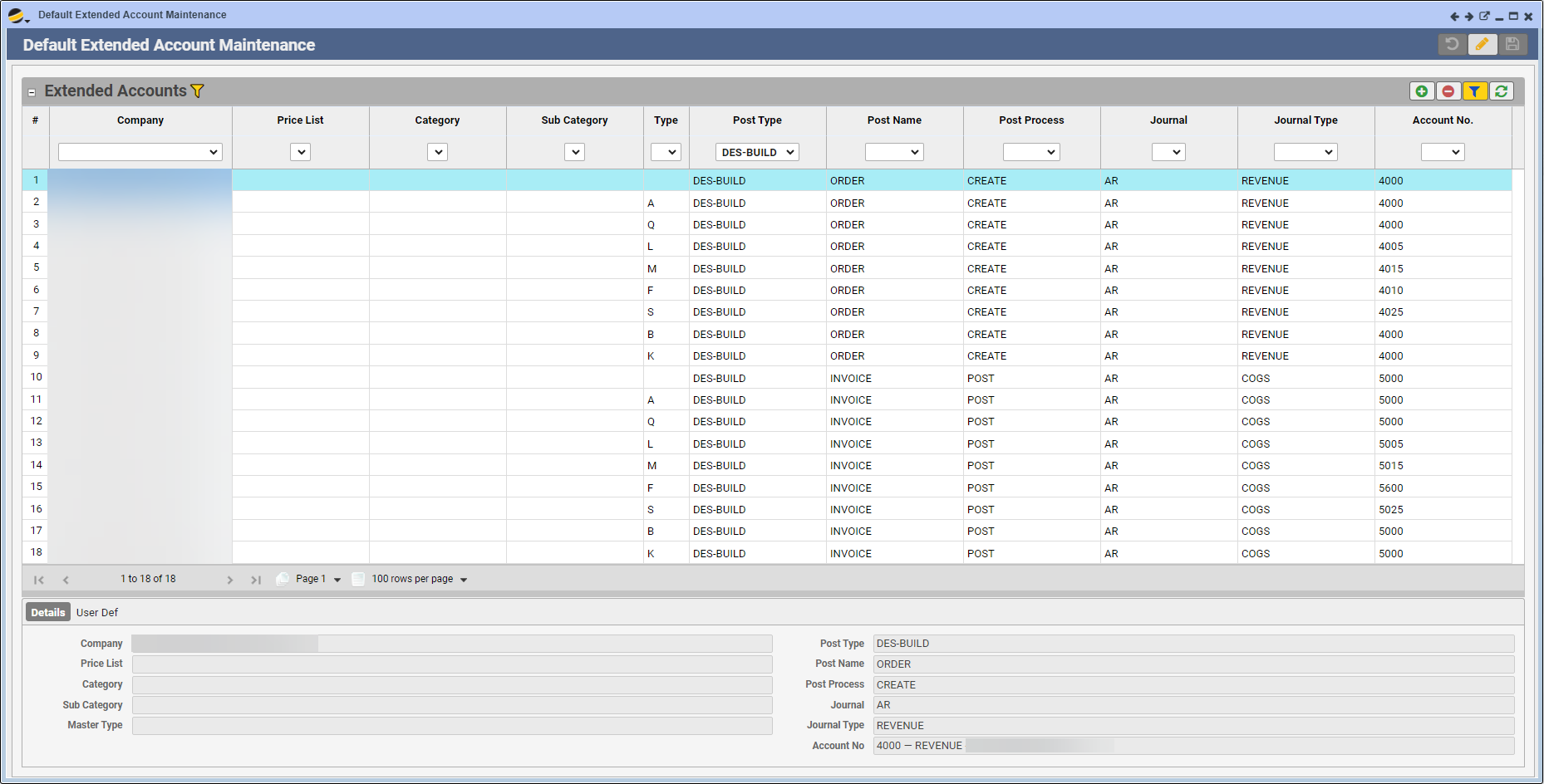
- ADD new Extended Account rows (typically 18 rows per Company and Sale Type)
- For each item Type (A, Q, L, M, etc.), including a BLANK item Type, create a minimum of two entries (depending on your process)
- Highlight each new row and either complete the fields for that row using the form below the grid, or double click inside the cell you wish to change
- Select Post Type (the new Sale Type you created above)
- Select Post Name (ORDER or INVOICE) – you must assign one each for each item Type
- Select Post Process (CREATE or POST) – you must assign one each for each item Type
- Select Journal (this will typically be AR)
- Select Journal Type (REVENUE or COGS) – you must assign one each for each item Type
- Select Account No. – these are your company’s GL Account Numbers
- NOTE: see grid pattern in below screenshot – For Post Name ORDER, Post Process should be CREATE and Journal Type should be REVENUE. For Post Name INVOICE, Post Process should be POST and Journal Type should be COGS
- Special instruction for COGS account type:
- Be sure to set appropriate Job Cost Type and / or Job Cost Class for accuracy – these fields will appear in the form below the grid
Sales Forecast#

This Sales Forecast report displays a overview of all the Sales Opportunities in the system. This report can be used by Sales Reps as well as Sales Managers
Extended Quote Authorization Rules#
This section describes how to set up Quote Authorization Rules if you want to specify parameters under which Sales Quotes can be approved. For example, you can assign general Sales staff a Price, Cost, or Margin limit for approving Quotes, while granting the Sales Management and Executive teams different approval amounts
To create Quote Authorization Rules, complete the following steps:
- Go to Sales > Sales Admin > Extended Quote Authorization Rules and click the Add icon
- Add details to the form:
- Title – A description of the rule that displays in the Quote Authorization Rule List grid
- Authorizer – The User who will receive the authorization message when attempting to authorize a Quote, should the rule apply
- Branch – The Branch that applies to the authorization rule
- Department – The Department that applies to the authorization rule
- Sale Type – The Type of Sale related to the authorization. By default, the list is from the general code UNIFIEDTYP
- Sub Total Max – The value that displays in the Sub field in the main Sale tab of the Quote form
- Cost Max – The value that displays in the Total field in the main Sale tab of the Quote form
- Margin Min – The Minimum Margin Percentage required for the Quote to be authorized, using the GM% field in the main Sale tab of the Quote form
- Enable check box – Specifies that the rule is active. If un-checked, the rule will not apply to Quote authorization
- Failure Message – The error displays when the rule applies and Quote authorization is denied
- Click the Save icon
For additional detailed instruction, use case and example, please refer to Extended Quote Authorization Rules
Set Up a Sales Funnel Template#
This section describes how to set up a Sales Funnel Template
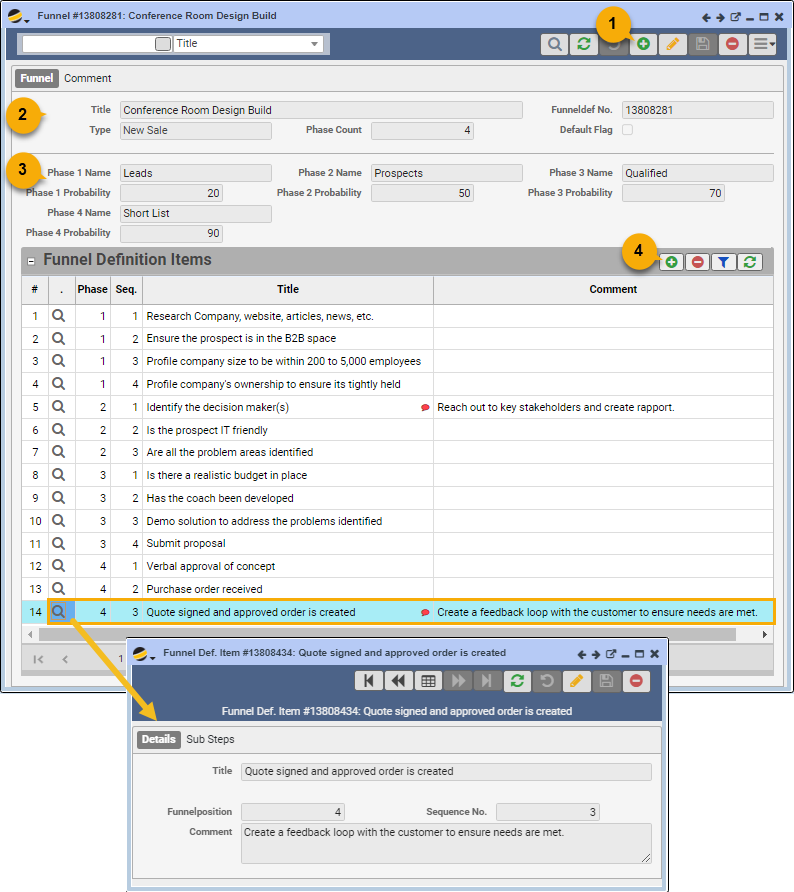
- Go to Sales > Sales Admin > Funnel Administration and click the Add icon
- Fill in Funnel details on the Funnel form > Funnel tab
- Title: input a distinct name for this Sales Funnel
- Type: select from drop-down list based on values defined by General Code FUNNTYPE
- Phase Count: specify the number of phases to be defined in this Sales Funnel
- Default Flag: select the checkbox to define this as the default funnel to display from Sales menu > Quick View > View Funnel
- Set up each phase (to a maximum of 9 phases) for this Sales Funnel
- Associate a Probability % to represent the likelihood of the Sales Opportunity closing, where the higher the phase completed, the higher the probability
- The % probability input for each phase needs to include cumulative probability of any phases previous to it; and be less than 100 (since a value of 100 would indicate a certainty in closing the Sale)
- Click the Save icon to save the phase
- For each phase, define at least one step, i.e. a Funnel Definition Item
- In edit mode: On the Funnel Definition Items grid, click the Add icon and define its attributes:
- Title: input the name of this step
- Funnel Position: specify which phase this step belongs to
- Sequence No.: specify the numbered sequence this step exists as part of this Funnel
- Comment: optionally add more text details as necessary
- Click the Save icon to save this step
- Repeat for as many steps as needed for this phase
- In edit mode: On the Funnel Definition Items grid, click the Add icon and define its attributes:
Suggestion: as a next step, your administrator may configure this sales funnel definition to a Sales Opportunity interest
Configure Opportunity Interest to a Funnel#
Configure a Sales Opportunity “Interest” to a default Sales Funnel Template
Pre-requisite: the Sales Funnel is previously created (see “Setup a Sales Funnel template“) and you have noted down its FunnelNo
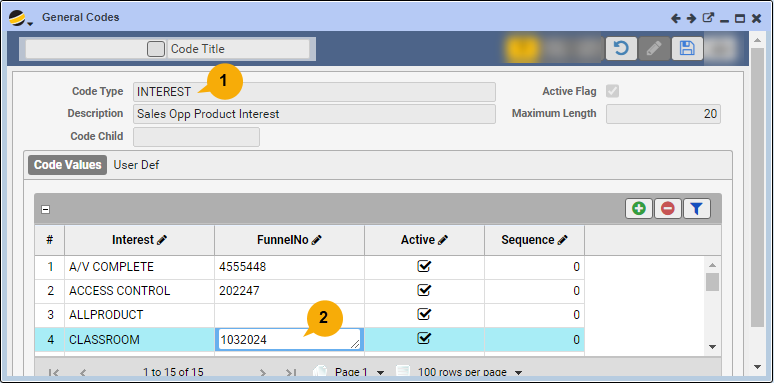
- Go to Maintenance > General Codes
- Search for code “Interest” representing the “Sales Opp Product Interest”
- Notice the list of “Interest” values that display
- If the desired “Interest” value exists, proceed to step #2
- Otherwise create a new “Interest” for the business sales opportunity
- In Edit mode, click the Code Values grid Add icon
- Fill in the details, including name of the new “Interest” row
- In edit mode: for the selected “Interest” value row, link the Sales Funnel to the Interest:
- Fill in the column FunnelNo (by default it is blank) of the Sales Funnel template
- Click the Save icon