- There are 2 options:
- Go to View > My Tasks and click the HR Time Request item type requiring you (HR) to approve
- Or alternatively, go to HR > Employee and search for the Employee record
- Go to Employee > Schedule tab
- Enter the date range of this Employee’s time requests you wish to find and approve:
- Specify the dates Start Date and End Date fields
- Specify the Type applicable, or leave as “ALL”
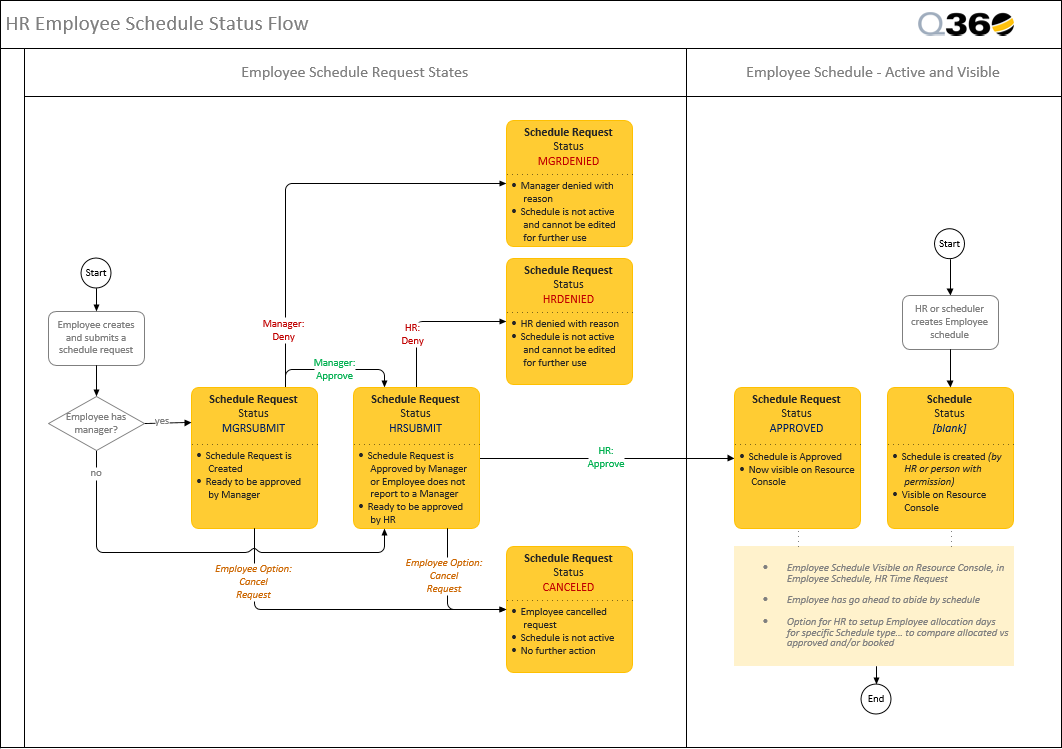
- Notice the request(s) waiting for your approval are in status HRSUBMIT
- Decide whether to approve or deny the time request:
- Hint: you may refer to the data displayed in Days Off / Allocations grid for this Employee’s allowable days remaining
- Select the requested row(s) and click Schedule grid Extended Menu for options
-
- To approve: click Accept Selected. Status is now APPROVED
- To deny: click Deny Selected, and enter the reason when prompted. Status is now HRDENIED
- The Employee can expect to receive an automated email of the outcome of your action, i.e. HR’s approval / denial decision of the time request
-
Reference: a submitted time request will go through the MGRSUBMIT, HRSUBMIT, and APPROVED statuses, as illustrated on this Q360 employee schedule status flow for time request: