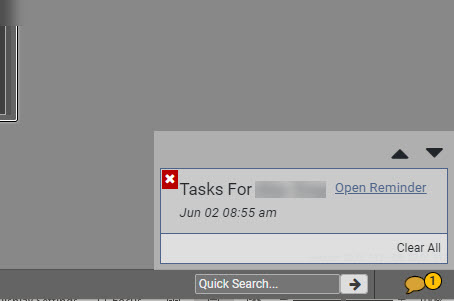
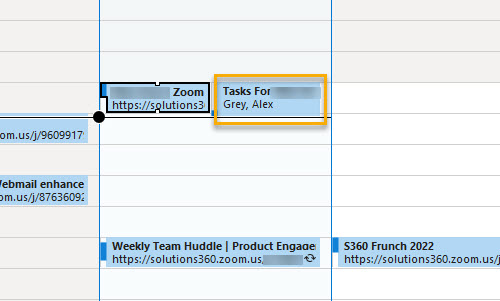
It is now possible to set task and event reminders within Q360 which sync to an external calendar. Reminders set within Q360 will appear in the bottom right corner of the Q360 window, and will also appear in a pop-up external calendar window as usual. Q360 reminder tasks and events will sync to your Outlook calendar and appear on the calendar along with events created within Outlook.
Set a Reminder:
- Click the globe icon in the top left corner of any Q360 window.
- Click Set Reminder.
- A pop-up window will appear and you will be prompted to enter a Reminder Title, Reminder URL and Reminder Date (includes time). The Title and URL will be populated, but may be changed. The auto-populated URL will reference the form from which you set the reminder.
- The task or event will appear on your external calendar immediately or when your Q360 version is set to sync with your external calendar.
- When the Q360 pop-up reminder appears, clicking the “Open Reminder” hyperlink will open the window from which you set the reminder. Note: the pop-up reminder will remain on your screen until you acknowledge it (clear it), by clicking the X.
View Reminder History:
- From the main View menu, click Notification History. The Notification History window will open.
- Reminders will appear in grid format, along with background job notifications and user maintenance items. Note: this grid may be filtered and / or customized.